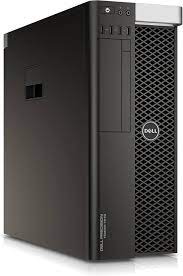
is the part of a computer that contains the main components that perform the operations and calculations. It usually includes the motherboard, CPU, RAM, and other devices, as well as the case that holds them together.
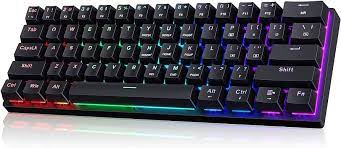
keyboard:
is a device that lets you enter text, symbols, and commands into a computer or other device. It has keys with different functions or characters, and can connect to the device in various ways.
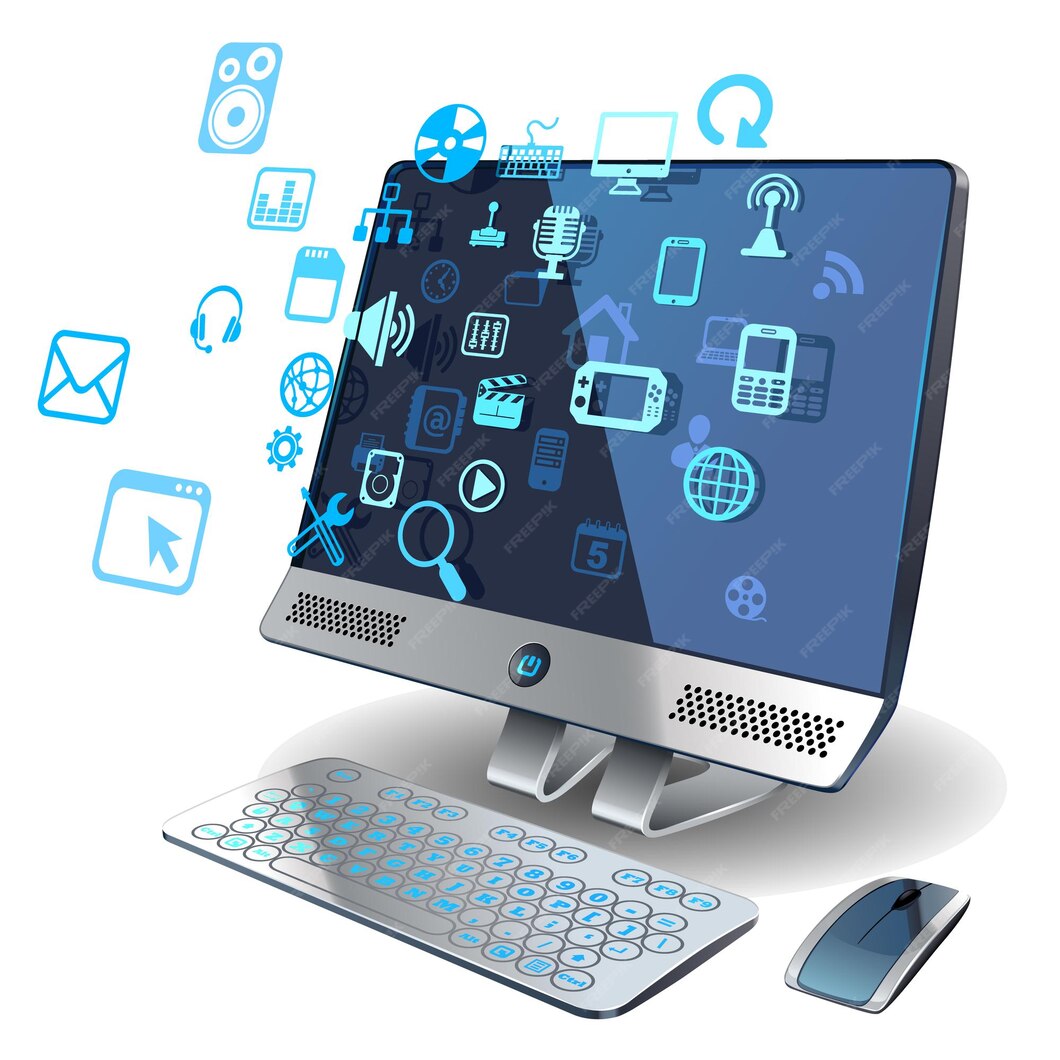
Monitor :
A monitor is a device that displays the output of the computer or other device on a screen. It can show text, graphics, videos, or other types of content. It can connect to the device through various cables, such as HDMI, VGA, or DVI
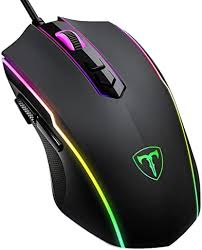
A mouse is
a device that lets you control the cursor on the screen and interact with the computer or other device. It has buttons that you can click or press to perform different actions, such as selecting, dragging, or scrolling. It can connect to the device wirelessly, through a USB port, or through other interfaces.
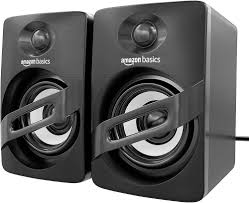
Speakers :
are used to connect to a computer to generate sound, which are one of the most common output devices. PC comes with some sort of speaker system. While some older PCs had a speaker built into the system unit, systems today come with separate right and left speakers
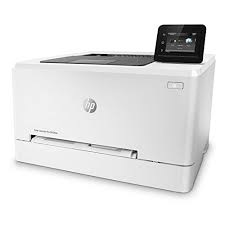
Printers is
are commonly used for printing documents, photos,
graphics, and other types of visual content. They are essential
devices for home and office use, and some printers have additional
features, such as scanning, copying, and faxing capabilities.
Click here to get some of tips to type faster on a keyboard
how to type faster on a keyboard
Find a comfortable posture and position your fingers on the home row keys, for example make A, S, D, F for the left hand and J, K, L, ; for the right hand.
Use the correct finger for each key. Each finger is responsible for typing a diagonal row of keys that slants down to the right.
Practice typing regularly and use online resources to test your speed and accuracy. You can find free typing courses, games, and tests on websites like TypingClub, wikiHow, and How To Type. These websites can help you learn the basics of touch typing, practice your skills, and track your progress.
Try to avoid looking at the keyboard or the screen while typing. Focus on the text that you want to type and use your muscle memory to hit the right keys. If you make a mistake, don’t stop to correct it.