

There are some tips to speed up windows10
Tips to improve PC performance in Windows


If your PC is running slowly, the following suggestions might help speed things up. The tips are listed in order, so start with the first one, see if that helps, and then continue to the next one if it doesn’t.
* Make sure you have the latest updates for Windows and device drivers
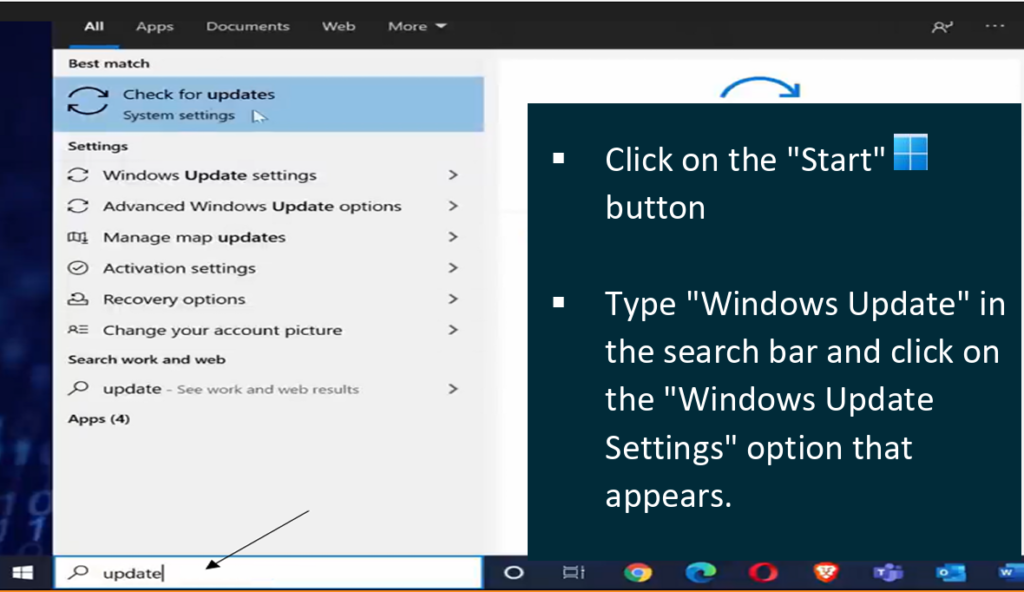
To check for updates , there are two ways to do check
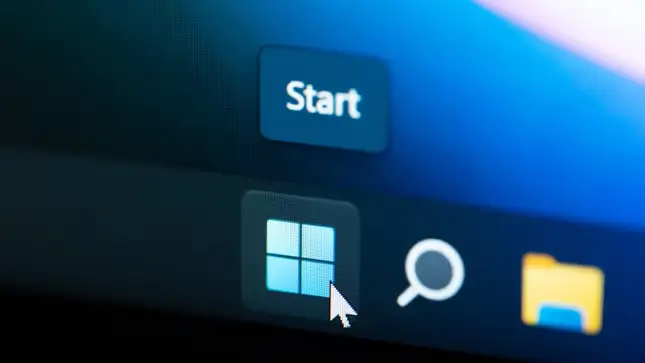
The first method to check update of windows via the Start Menu, then type word update
The second method to check update of windows via
- Select the Start button, then select Settings > Update & Security > Windows Update > Check for updates.
- Select the updates you want to install, then select Install.
- Restart your PC and see if it seems to run better.
To restart your PC
Sometimes apps that were made for an earlier version of Windows will still run on Windows 10, but they might slow down your PC. If this happens after you open a certain program, check the software company’s website for an updated version, or run the Program Compatibility Troubleshooter
*Check for low disk space and free up space
If you’re facing low disk space on your computer, here are a few general tips on how to solved the issue:
To free up space on your Windows 10 device, you can use the built-in Disk Cleanup tool, uninstall desktop apps you no longer need
- Delete Unnecessary Files:
- Clean up your desktop and downloads folder.
- Uninstall unnecessary programs:
- Uninstall programs you no longer need.
- Delete temporary files and folders:
- Press the Windows key+R type “%temp%” and press Enter.
- Delete the files in the Temp folder.
- Move Files to External Storage:
- Move large files, such as videos and large documents, to an external hard drive or cloud storage.
Pause OneDrive syncing
Your PC settings let you choose where files will be saved by default. You can save files on your PC or to OneDrive by default and sync files between the two locations. This lets you get to your files from any device that can connect to the internet, and it helps make sure your files are backed up in case your PC is ever damaged or lost. However, files must sync between your PC and OneDrive, and syncing can slow down your PC. You can pause OneDrive syncing temporarily and see if it helps improve your PC performance.
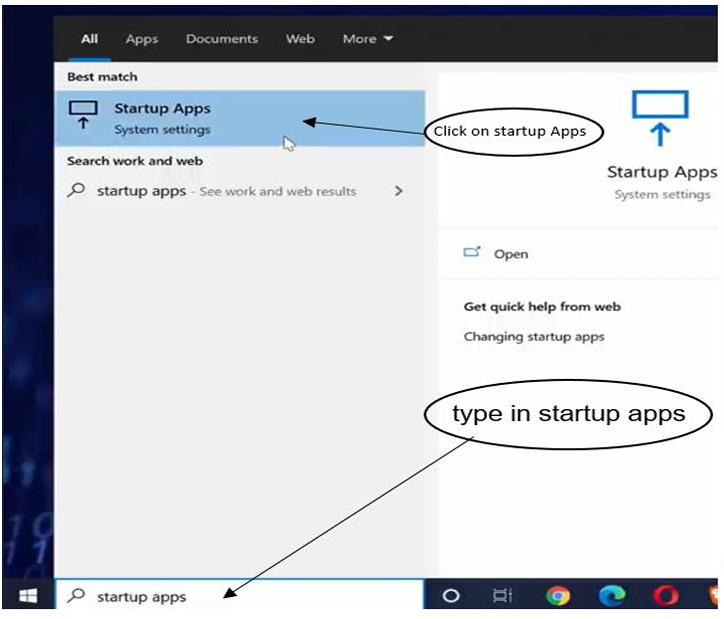
*Disable unnecessary startup programs
When you turn on your PC, some programs start automatically and run in the background. You can disable these programs so they don’t run when your PC starts.
Many programs are designed to start automatically when Windows does. You don’t realize they’re running, but they’ll open quickly when you go to use them. This is helpful for programs you use a lot, but not for programs you don’t use often because it increases the time it takes Windows to start.
Find the programs that start automatically
To stop a program from starting automatically
- Select the Start button, then select Settings > Apps > Startup .
- In the Startup Apps area, find the program you want to stop from starting automatically and set it to Off.
Shortcut Keyboard
Here are some popular keyboard shortcuts :

Web browser Keya Shortcuts

Text Manipulation Keys Shortcuts
Windows Keys Shortcuts

Function Keys Shortcuts
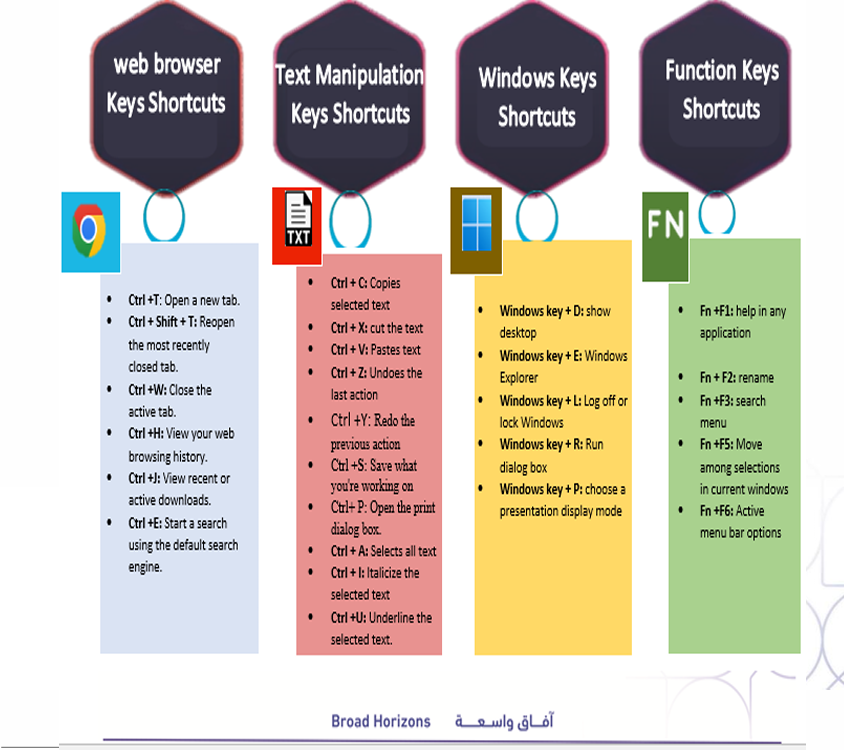
The List of shortcut of keyboard
List of shortcut of keyboard:
Using keyboard shortcuts can help you work faster and more efficiently than using a mouse or touchpad to navigate through menus and options. By using a few keystrokes, you can accomplish a task that might otherwise take several mouse clicks or menu selections.
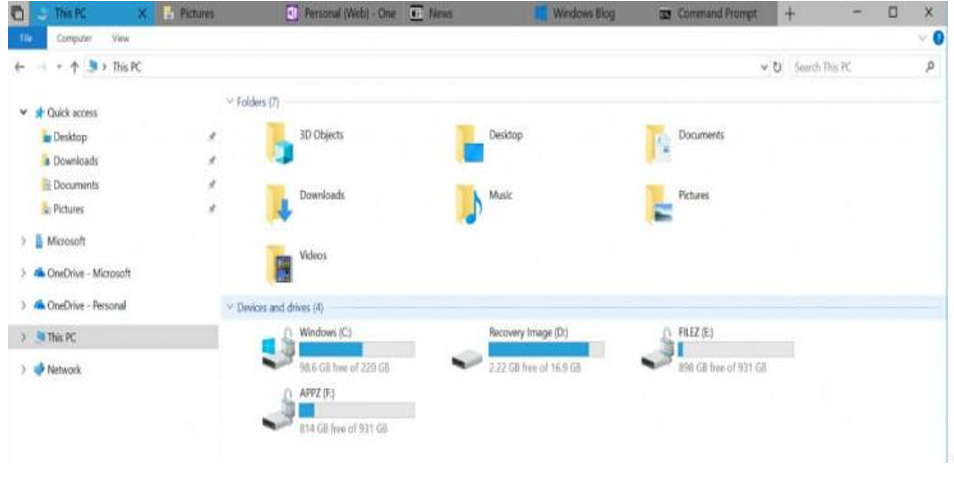
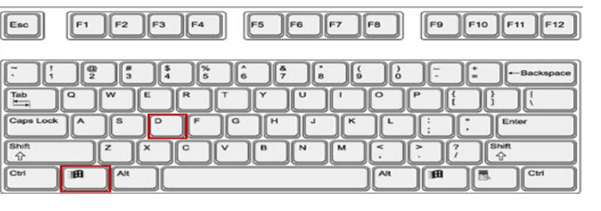
Press in the same time the Windows (
) + D key shortcut to display
desktop and hide the desktop. This command forces Windows to switch
to the desktop immediately and minimize all open windows to the
taskbar. Press in the same time the Windows (
) + D key shortcut
to bring back those open windows.
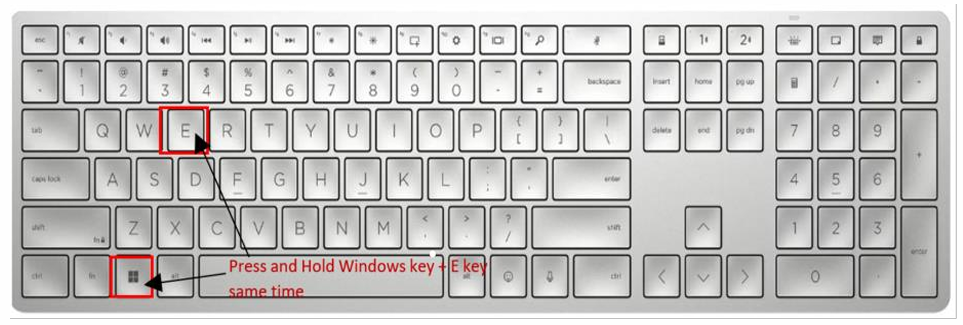
Press in the same time
the Windows (
) + E: This hotkey opens
File Explorer (

), allowing you to access your files and folders
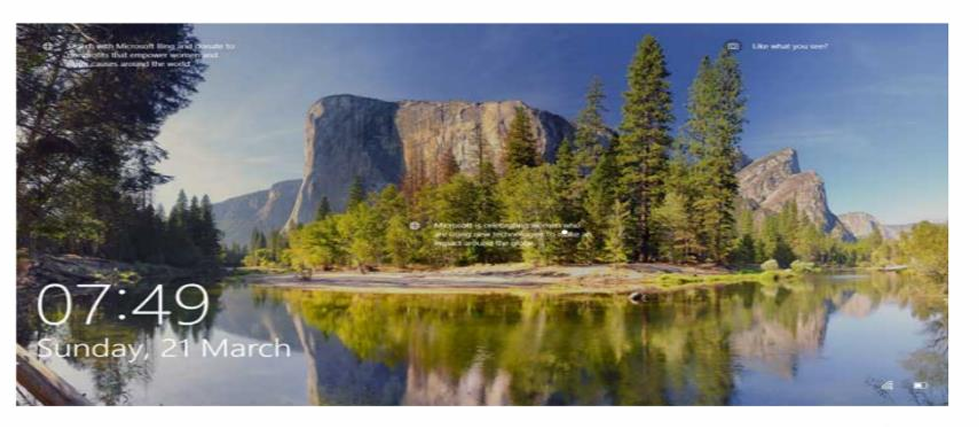
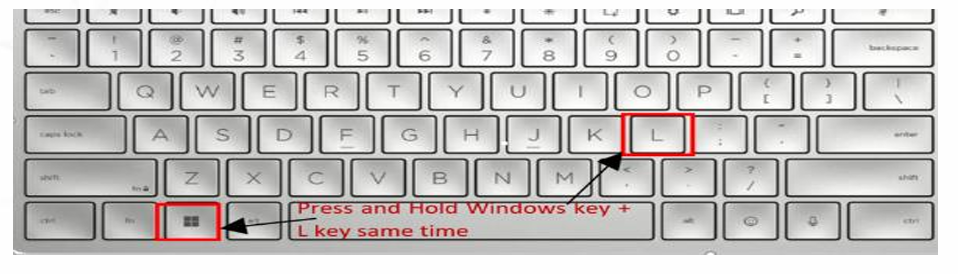
Press and Hold
the Windows (
) + L key in same time: This
hotkey locks your computer, making it secure if you step away
from your desk.( Locks the computer)
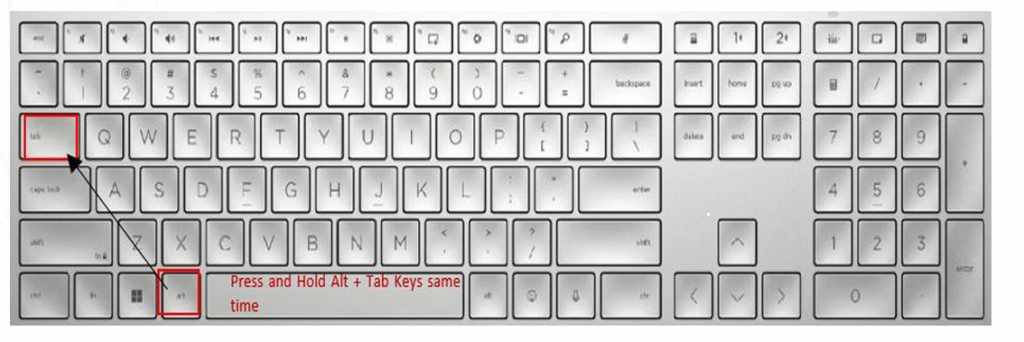
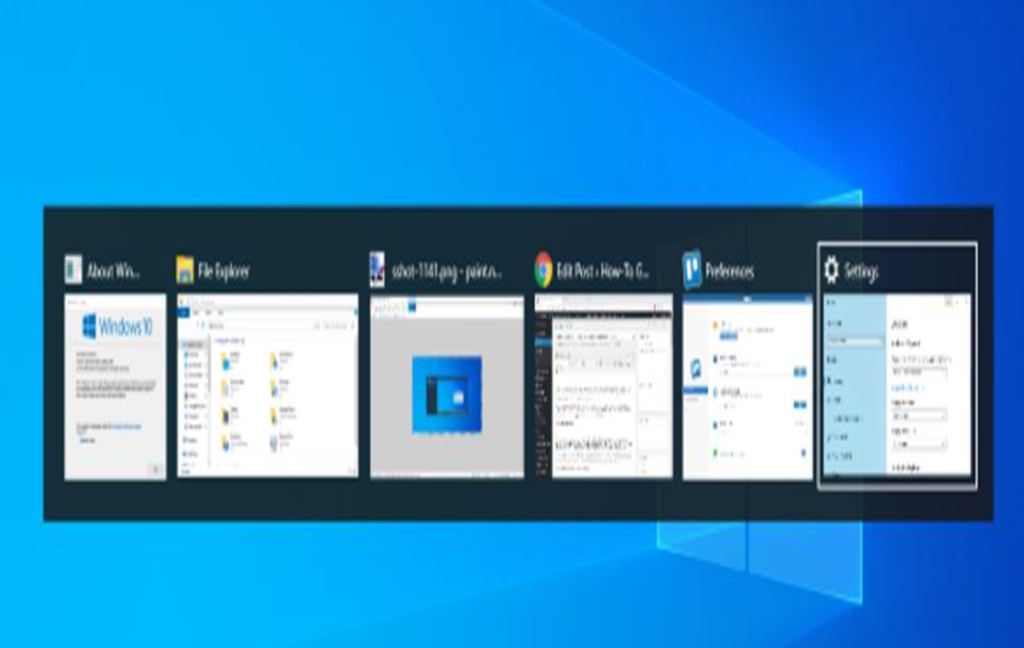
Press and Hold Alt + Tab key in same time: Press Alt + Tab to switch between windows. If you can’t use a mouse and need to switch to another app that’s open, press these two keys at the same time.
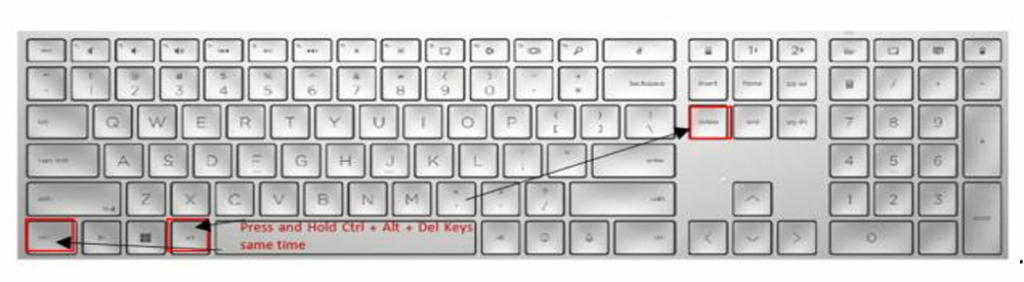
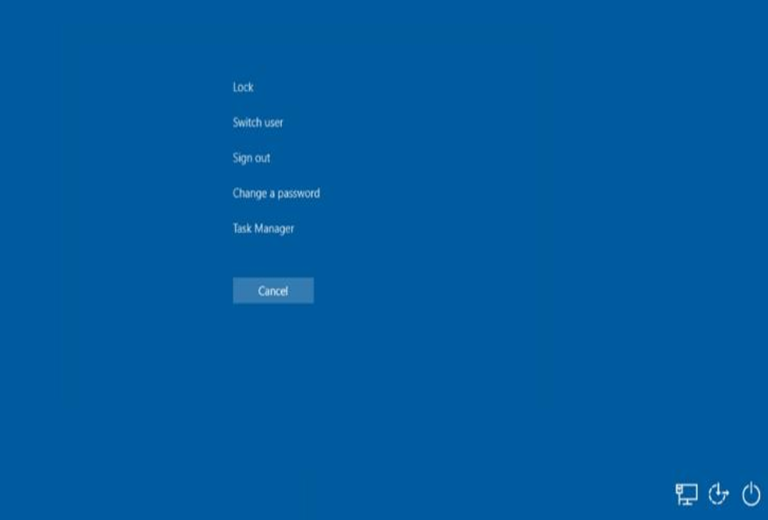
Press and Hold Ctrl + Alt + Del Keys (Control+Alt+Delete ): This hotkey opens the Windows Security screen, which allows you to lock your computer, switch user, log off, change a password, or start Task Manager.